New in MyStories: AI Editor, Audio Story Playback, and More

Since we introduced MyStories, people around the world have been capturing their memories in a keepsake book their families will treasure. Today we’re excited to share several new updates that make MyStories even more rewarding for storytellers and readers alike:
- AI Editor, a writing assistant built right into the story editor
- Audio QR codes, which allow you to listen to recorded stories in your loved one’s own voice straight from the printed book
- A dedication page you can add at the front of your book
- The ability to arrange multiple photos side by side, and to rotate photos
Try the features now on MyStories
AI Editor
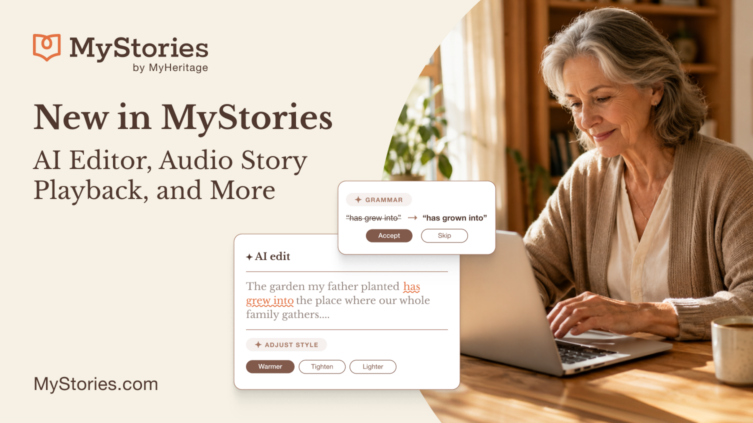
Not everyone feels confident putting their memories into words. Now, with AI Editor, you don’t need to worry about getting the phrasing just right. AI Editor is a writing assistant built directly into the MyStories editor that helps you polish your text without ever leaving the page.
AI Editor offers two ways to improve your writing:
- Fix errors checks your story for grammar, spelling, and punctuation issues, across the entire story at once.
- Adjust style lets you rewrite your text in a specific direction: tighten it, elaborate on it, or shift the tone to be warmer, lighter, or more conversational. You can apply “Adjust style” mode to a specific selection of text, or to the whole story.
Whichever mode you choose, your original text remains in the editor until you decide to use the new version. This gives you full control to compare, adjust, and decide what feels right for your story.
Note that AI Editor doesn’t create, invent, or add any content to your stories. It simply fixes errors and adjusts the tone of what you’ve already written.
How AI Editor works
While writing or editing a story, click “AI edit” above the editor to open the editor panel.

Accessing the AI Editor (click to zoom)
Choose “Fix errors” to check your story for grammar, spelling, and punctuation. Click “Find errors” and MyStories will review the entire story and highlight any issues it finds.
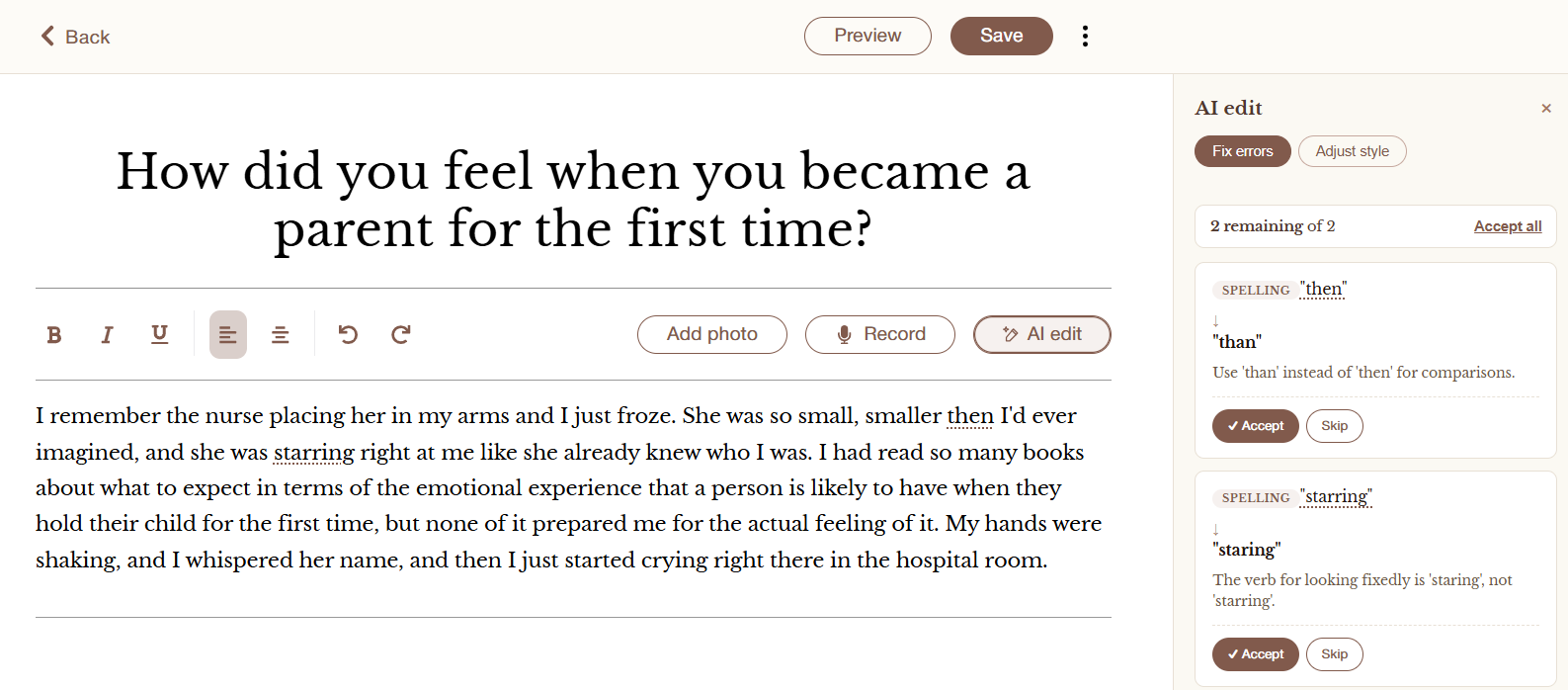
MyStories AI Editor: Reviewing errors (click to zoom)
Click “Accept” to apply the change to your story, or “Skip” to ignore it.
If you feel your text needs deeper editing or polishing, click “Adjust style.” Choose whether you want to rewrite a specific selection or the whole story, then pick a direction: tighten, elaborate, warmer, lighter, or conversational.
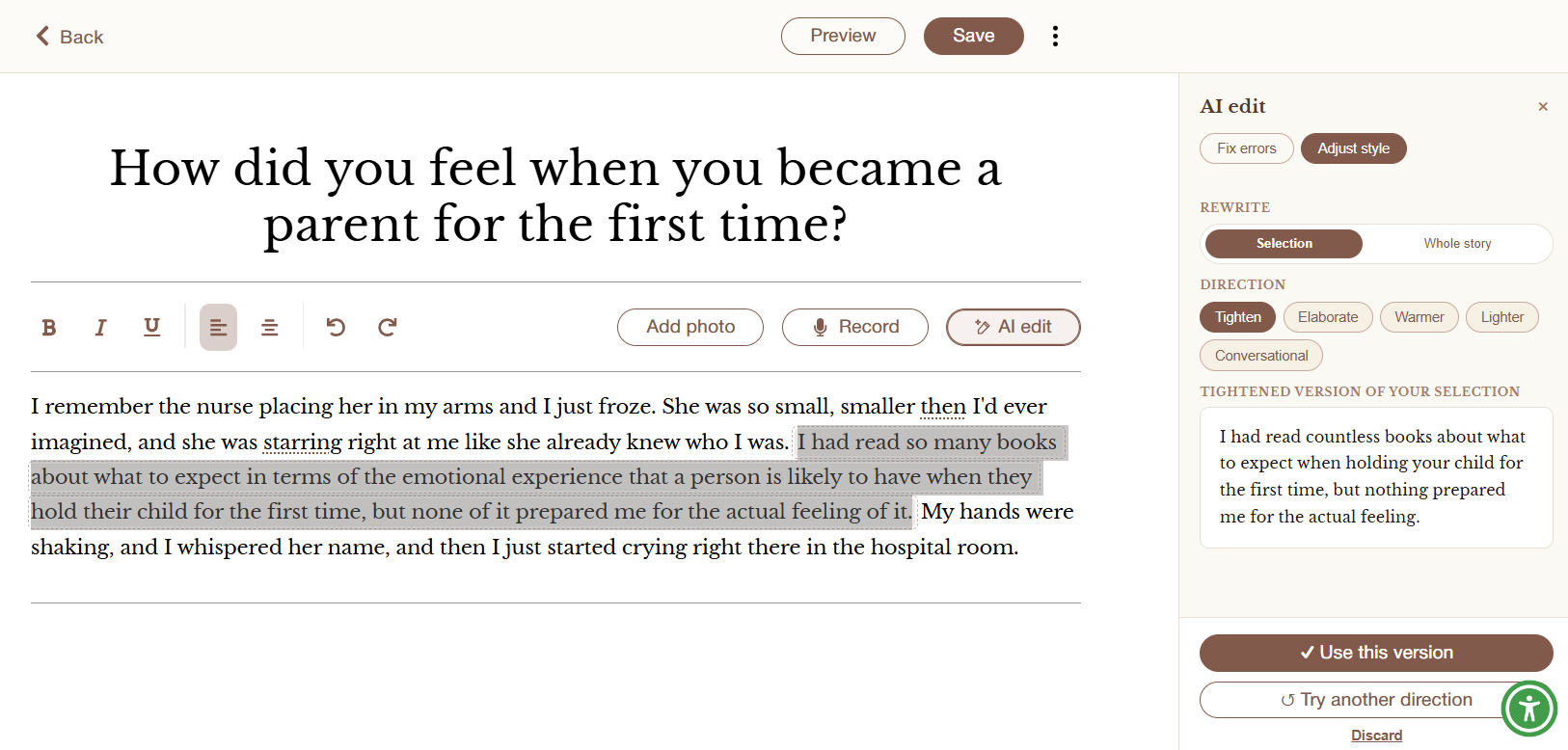
MyStories AI Editor: Tightening a specific selection of text (click to zoom)
If you’re happy with the editor’s suggestion, click “Use this version” to apply it to your text. If you want a different suggestion, click “Try another direction,” and if you’d rather go with your original phrasing, click “Discard.”
Audio story playback
With MyStories, you don’t have to type your stories at all. Record yourself telling them, and MyStories transcribes them for you. Now, those recordings can be part of the printed book, too.
At print time, you can add QR codes to any story that includes an audio recording. Scanning a code opens a page in the reader’s phone browser — no app to download, no login required — where they can play the recordings.

Viewing all audio clips for a MyStories book
Adding QR codes to the book
This option appears in the “Choose content” stage of the printing process. Select “Add recording QR codes” under “Recordings.” This will add a QR code to the table of contents, which, when scanned, opens a page in the reader’s phone browser listing every story with a recording.
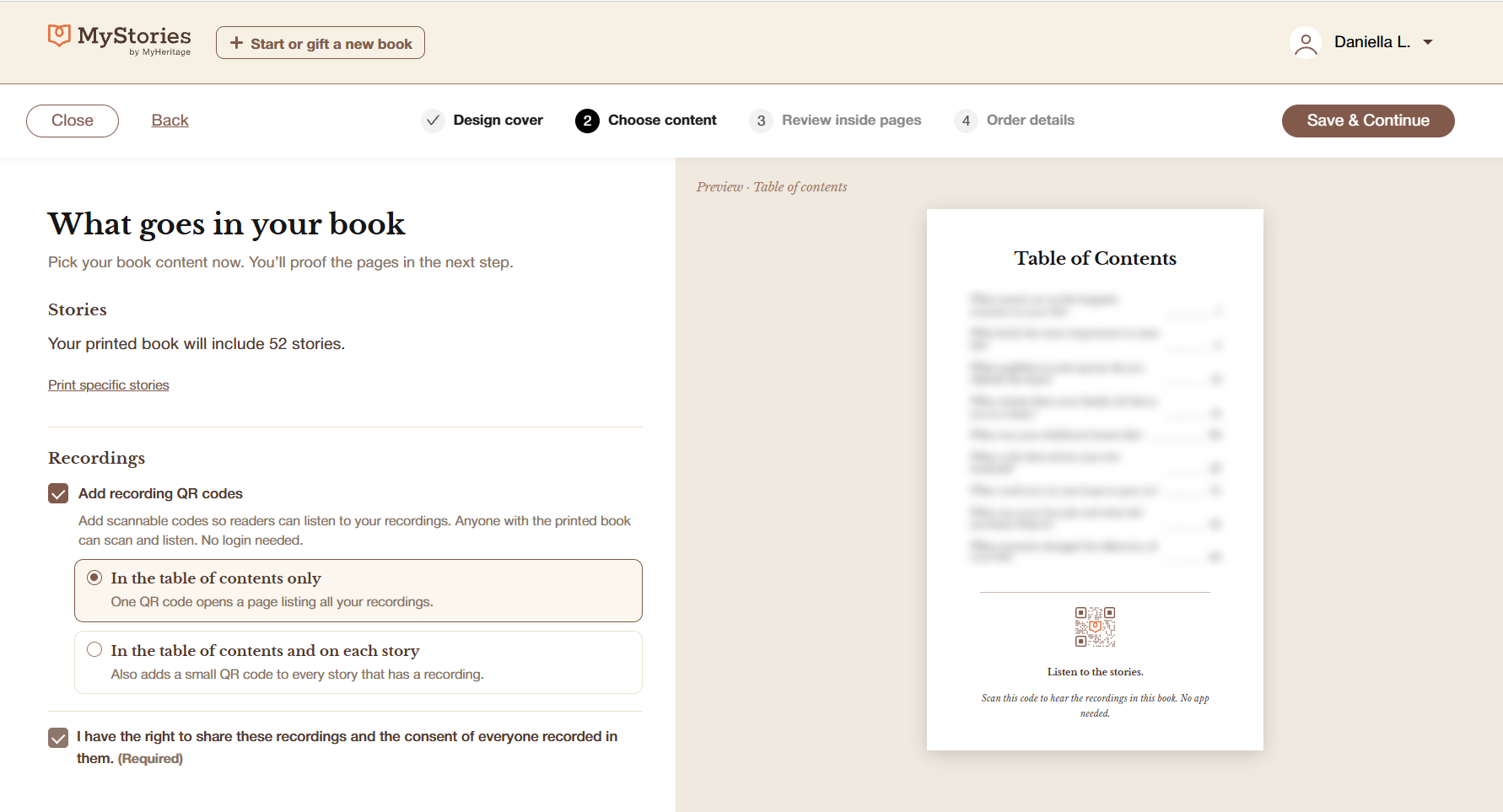
Adding QR codes to the printed book (click to zoom)
If you prefer, you can choose to add a small QR code next to each story that has one, so a reader can open its recording directly from that page. If you select this option, you’ll be able to choose a position for the QR code on the page: below the title, centered at the top, or on the upper corner of the relevant page.
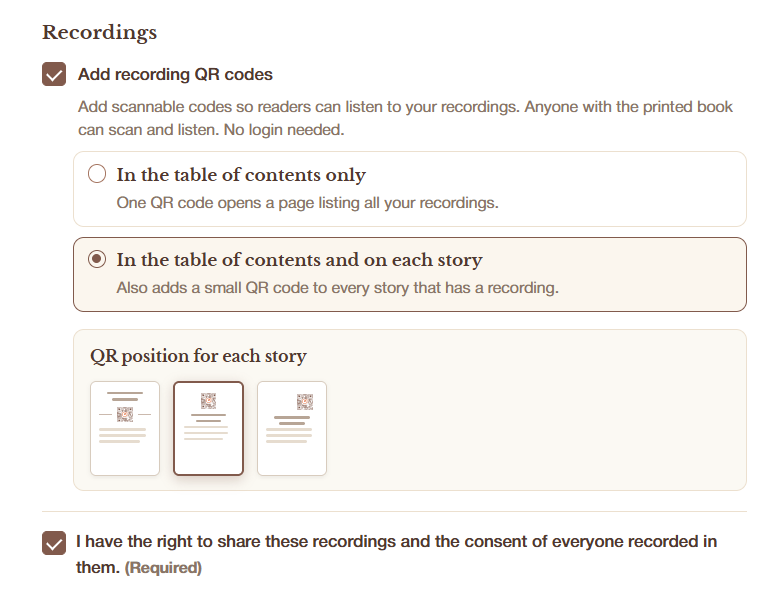
Choosing a position for the QR code (click to zoom)
You can also choose exactly which recordings to include in the printed book from the individual story page:
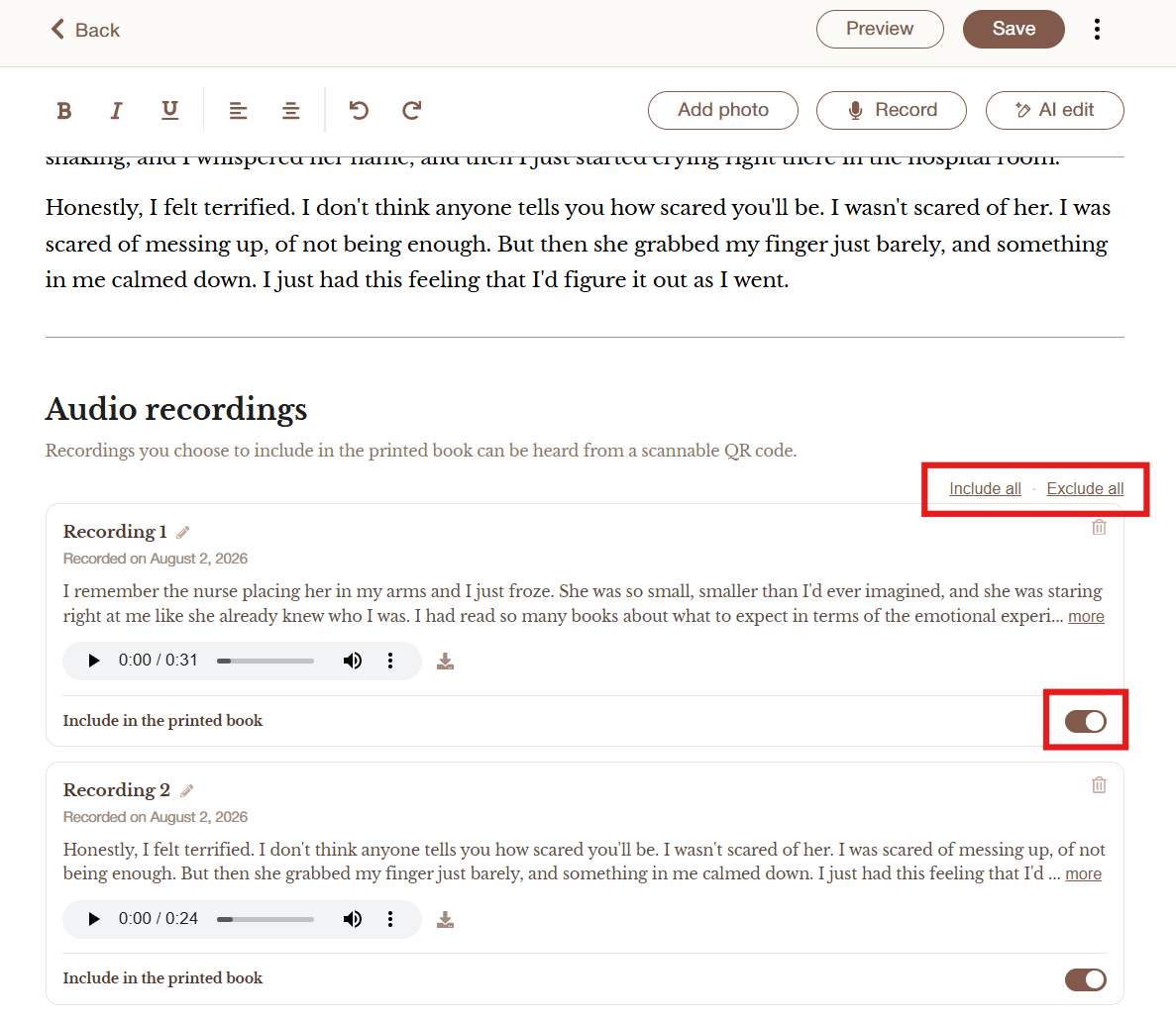
Choosing which recordings to include in the printed book (click to zoom)
Adding a dedication page
A dedication is one of the most personal touches you can add to a printed book — a chance to include a message for the people you wrote it for. Now you can add one to your MyStories book, too.
A Dedication section appears below the same “Choose content” step where you added the QR codes. Check “Add a dedication page” to write a short note that will print on its own page at the front of your book, right after the title page and before the table of contents.
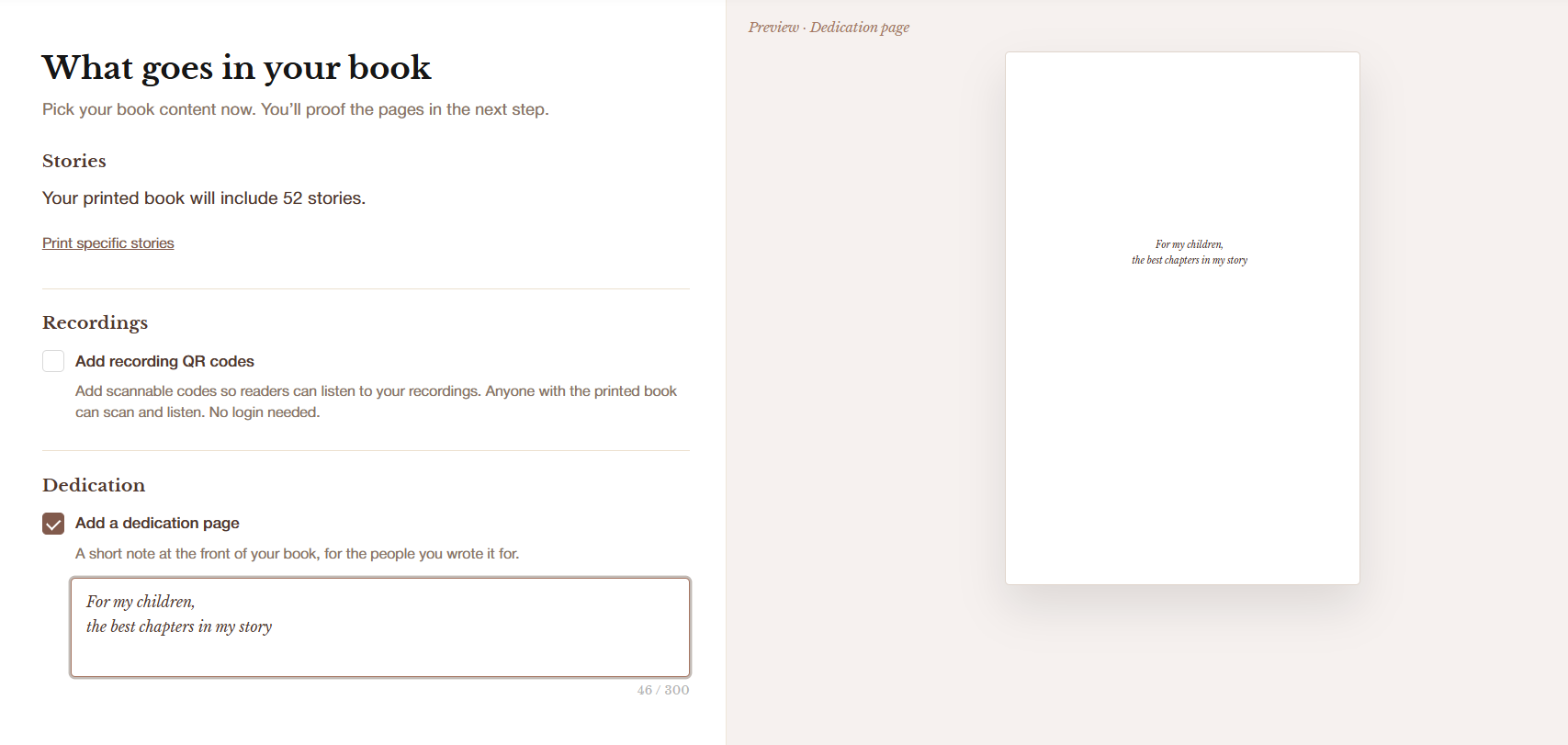
Adding a dedication page (click to zoom)
As you type, a live preview shows exactly how your dedication will look on the printed page.
If you leave the box unchecked, or check it but leave the text empty, no dedication page is added. Once you’ve written one, it’s saved with your book, so it’s ready the next time you print another copy.
Side-by-side photos
MyStories users enjoy adding photos wherever they like within the text, but many have requested the option to place multiple photos side by side in a horizontal row. We’re happy to share that this option is now available in the story editor.
After you add the first photo, select it, then click the “Add photo to row” button shown below:
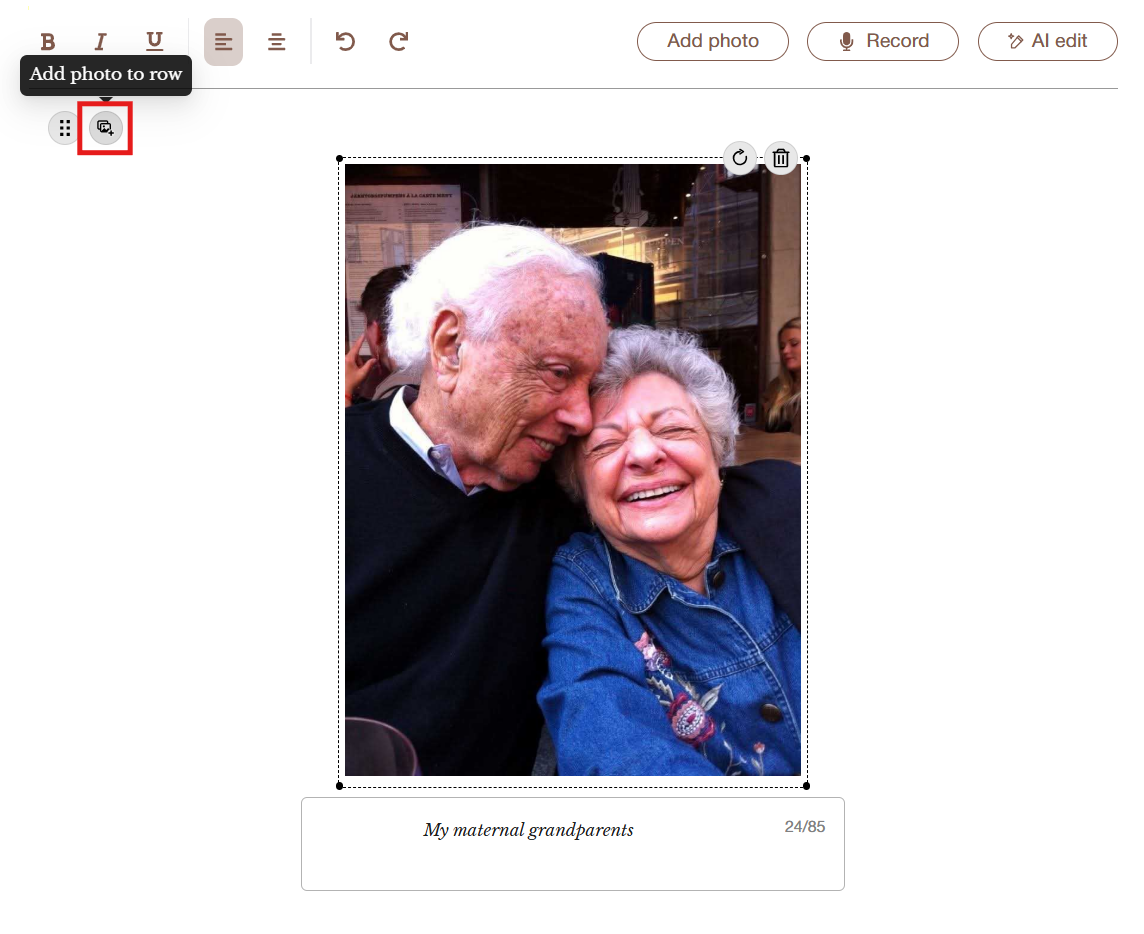
Creating a horizontal row of photos (click to zoom)
You can add up to 3 photos in a single row. Drag the corners of any photo to resize it, or click the “Match photo heights” button on the upper left corner to align them neatly.
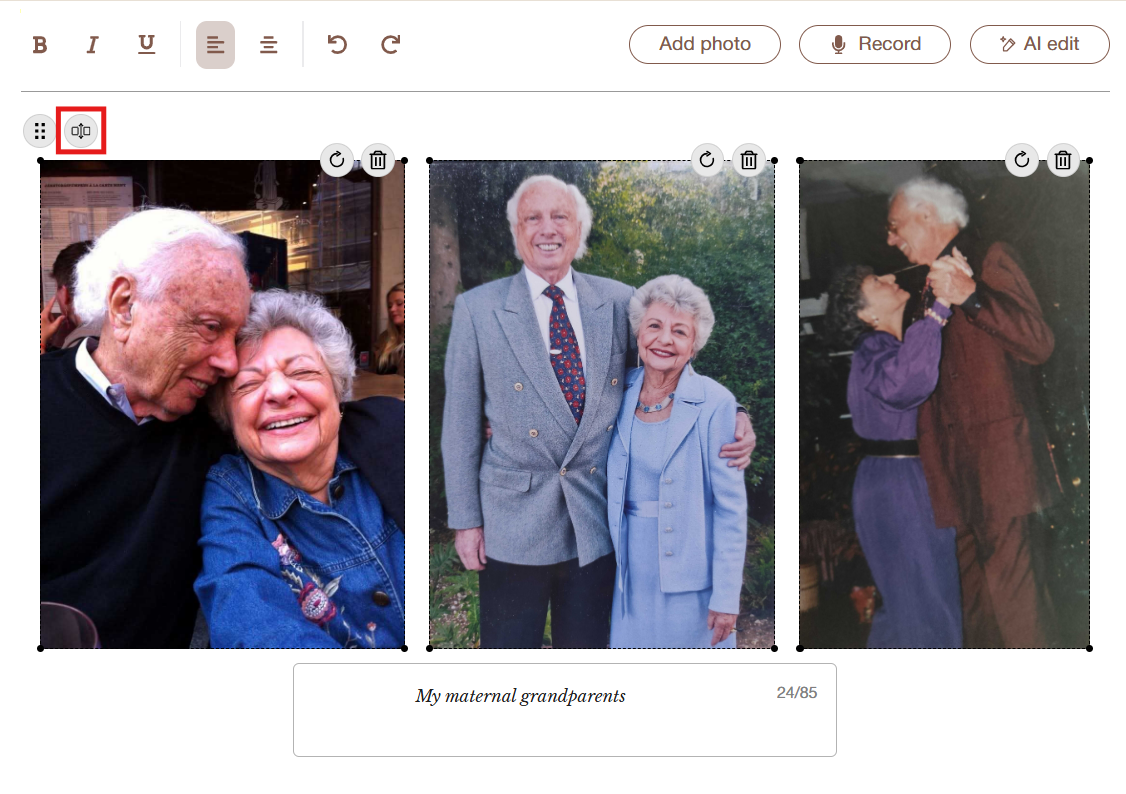
Matching the heights of 3 photos in a horizontal row (click to zoom)
Arranging photos in a horizontal row is especially useful for upright portrait-oriented photos because it makes more economical use of the space on the page. It’s a great way to include a series of photos of a particular person or event without taking up several pages.
Photo rotation
We have also added the option to rotate a photo within the story editor. If a photo you’ve uploaded is oriented incorrectly, it’s now easy to fix by simply clicking the rotate button on the upper right corner of the image.

Rotating a photo on MyStories (click to zoom)
Privacy
Your personal data is yours and yours alone, and you maintain full control over who can see your stories.
When you use AI Editor, your story content is processed by a third-party AI service to generate corrections or rewrites, and is deleted afterward. The first time you use AI Editor, you’ll be asked to consent to this before proceeding.
You decide which recordings are included in your printed book, and whether QR codes are added at all. Recordings are only accessible to someone with the physical book in hand — they are not searchable or shared elsewhere. Before printing, you’ll be asked to confirm that you have the right to share the recordings and the consent of everyone in them.
Your dedication is personal content, and it’s treated that way: it’s saved with your book, but it isn’t included in emails or shown anywhere else on MyStories.
As with the rest of your MyStories content, we will never publish your stories, photos, recordings, or dedications on social media or other channels without your explicit consent.
Cost
AI Editor and audio story playback are available as part of the MyStories premium plan, which costs $99. The dedication page, side-by-side photos, and photo rotation are available to all MyStories customers, including those with a basic plan. MyHeritage users are eligible for a 15% discount, which you can claim here.
Try the new features today
Whether you’re polishing a story you’ve been working on or getting ready to print your first book, these updates make it easier to write with confidence and to share your story in a way that feels personal. Visit MyStories.com and claim your 15% discount now!