Introducing Country Coding for Family Trees


A family tree often tells a rich story, but it isn’t always easy to see the geographical aspects of the story at a quick glance. To help you better visualize your family history, we’ve added country coding for family trees. This free new feature displays country flags for individuals in your tree based on key life events, transforming your family tree into a visual map of your origins.
Country coding is an optional feature that is currently available in all family tree views (Family, Pedigree, Fan, and List) on the MyHeritage website on desktop.
How it works
Country coding adds flags to your family tree based on locations where major life events took place. By default, it uses birth and baptism places. If you prefer, you can choose to base it on places of death and burial instead. You cannot configure it to use both birth and death events, because the result would be inconsistent across your family tree. Selection can be done through the country coding settings, which are described below. Country coding is enabled per family tree in your account, so enabling it for one tree won’t automatically enable it for other trees you may have.
Country coding looks at place names exactly as they appear in your family tree. If the last word of the place is a recognized, present-day country, that country’s flag is used. For example, if a birthplace is listed as “Poritzk, Russia,” a Russian flag will appear. If “Poritzk, Ukraine” is listed, a Ukrainian flag will appear.
If a place is entered using only the city name, the system uses the same geolocation system used in the PedigreeMap™ feature to determine the most likely country. For example, if the place says only “Danzig,” the system identifies it as modern-day Poland (known as Gdansk in Polish) and will display a Polish flag. If you prefer to use the German historical association, you can edit the place to read “Danzig, Germany,” and the German flag will appear.
Country coding uses only modern flags representing existing countries.
To see the difference clearly, here’s the same tree in Family view — first without country coding, and then with country coding enabled:

Before: Family view without country coding (click to zoom)

After: Family view with country coding enabled (click to zoom)
Here is how country coding looks in Pedigree view:

Country coding in Pedigree view, with color coding (click to zoom)
The most striking application of country coding is in color-coded Fan view. This offers the best visualization of ancestral origins.

Country coding in Fan view, combined with color coding (click to zoom)
Country coding can reveal migration patterns, highlight diverse origins, and spot missing places you may want to add, all at a quick glance.
Enabling country coding
A new button with a globe icon is now displayed in the navigation panel at the bottom right of the family tree, marked below in red. Click it to enable country coding. This will also open the country coding panel. The globe icon is shown in Family view, Pedigree view, and Fan view. The navigation icons aren’t shown in List view; however, once you enable country coding in one view of the family tree, it is applied to all tree views. Clicking the globe icon again will disable country coding.

Globe icon to enable or disable country coding (click to zoom)
The first time you enable country coding, a pop-up opens explaining more about the feature. Click the button at the bottom of the pop-up to enable country coding.

Enabling country coding (click to zoom)
Once enabled, flags will automatically be added at the bottom left of the profile card for all individuals who have a birth or baptism place listed. Hover over any flag in the tree to see a tooltip with the full birthplace, including the country name (which is useful if you don’t recognize some flags at a glance).

Country coding: hover over any flag to view the birthplace details (click to zoom)
Individuals without a birth or baptism place listed will have a flag icon with a dashed circle instead of a flag. To add a birthplace for that person, click the flag icon and enter the details in the “Edit profile” panel.

Country coding: adding a missing birthplace (click to zoom)
In some cases, country coding can’t match a place to a modern country. This can happen if the birthplace is too general, for example, the name of a hospital. It can also happen when the birthplace entered is a historical country that no longer exists, such as the former U.S.S.R. When this happens, a question mark icon appears on the profile. In the example below, the question mark appears because the country of birth, in the Austro-Hungarian Empire, no longer exists. In such cases we recommend leaving the place information as-is.

Country coding: historical countries that no longer exist (click to zoom)
When country coding is enabled, it opens a panel on the right-hand side of the tree, called the country coding panel. The panel lists the different countries of birth for individuals in the current view of the family tree, and shows how many people in this view were born in each country. When switching between the different tree views, the panel remains open unless you collapse it. To collapse the panel, click the arrow at the top, marked below in red.
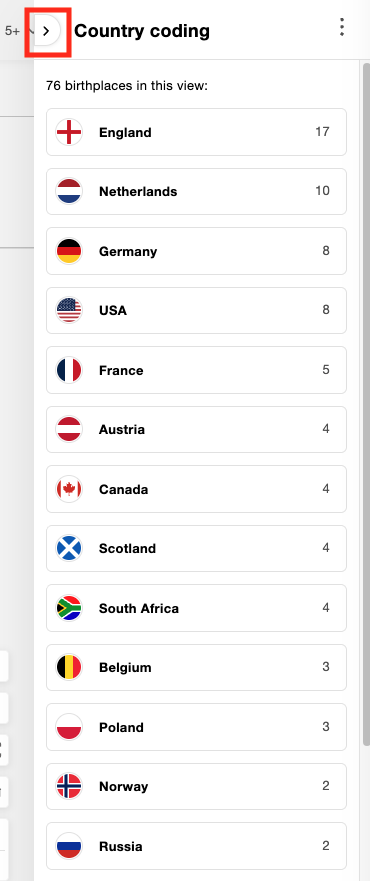
Country coding panel
To re-open a collapsed panel, click the arrow on the top right of the family tree, marked below in red.

Re-opening the country coding panel (click to zoom)
The list of countries in the panel is sorted by count. Note that this list does not refer to the entire family tree, but only to the current view: the part of the tree that is currently displayed on the screen.
Clicking a country name displays the individuals born or baptized in that country, as shown below:
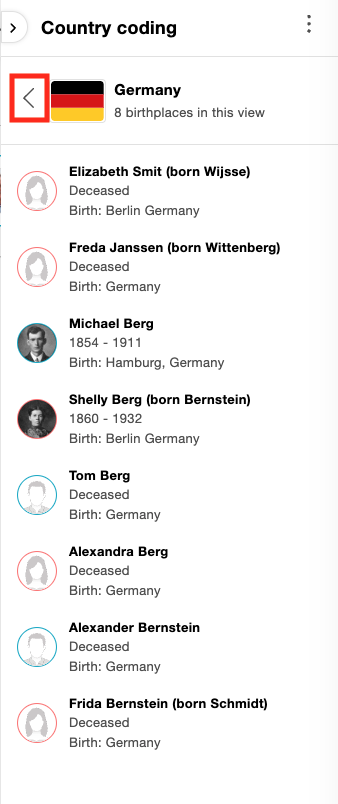
Country coding: drill-down for a specific country (click to zoom)
Clicking a name in this drill-down when the family tree is in Family view will re-center the view on that person in the tree, and will show his or her profile information in the left panel of the tree, if it’s already open. If the left panel is collapsed, click the profile card to open the left panel.
When viewing the tree in Pedigree view, Fan view, or List view, clicking an individual’s name in the country coding panel opens the left panel of the family tree, so you can conveniently view more information about that individual.
To return to the country list, click the arrow icon next to the country flag, marked above in red. Any time you navigate to a new area of the tree, the country coding panel will automatically refresh to reflect the current view of the tree.
At the bottom of the country coding panel there is a section listing how many people in this view are missing a birthplace:

Country coding: missing birthplaces (click to zoom)
You can click it to view those individuals.

Country coding: individuals missing a birthplace (click to zoom)
When you hover over the name of any individual who is missing a birthplace, an icon displays on the right side next to that person’s name (marked below in red). If you know the birthplace, click the icon to open the “Edit profile” screen and edit the information for this individual.

Country coding: adding a missing birthplace (click to zoom)
If a Hint for a birthplace exists based on Smart Matches™ or Record Matches, a “Suggested places” panel will appear on the right-hand side of the tree. Review the information and the match to determine whether you want to set that location as the birthplace. To view suggested places and save them to your tree, a subscription is required.

Country coding: suggested places (click to zoom)
To disable country coding, click the globe icon again. This removes the flags and hides the panel. The globe icon acts as a toggle to enable or disable country coding whenever you want.
To access the settings for country coding, click the three-dot menu on the top right of the country coding panel, then click “Settings”.

Country coding settings menu (click to zoom)
In the Settings window, you can control several things: which countries to break down into sub-districts, the life events that determine which flags appear (birth or death), and whether to show icons for people with missing places.

Country coding settings (click to zoom)
For certain countries, you can receive a breakdown into sub-districts, for example, to show flags for U.S. states or Canadian provinces. The default for the United Kingdom is to break it down into England, Scotland, Wales, and Northern Ireland. If you entered “London, England” in your family tree, you’ll see St. George’s Cross, but if you entered “London, United Kingdom”, you’ll see the Union Jack. If you prefer to see only the Union Jack, uncheck “United Kingdom”.
You can also choose which life events determine the flags that appear on your family tree. The default is birth and baptism, but you can change this to show death and burial places instead.
When country coding is enabled, the flags will also appear when downloading a family tree chart such as a fan chart.
FAQ
How are the country flags determined?
Country coding looks at the birthplace of an individual as it was entered in the family tree. If the last word of the birthplace is a recognized present-day country, that country’s flag is shown. If the last word of the place doesn’t include a country, MyHeritage uses geolocation to determine which country that place is in today. If a birthplace isn’t listed, country coding looks for baptism or christening events to see if they include a place. For death and burial places, country coding first checks if there is a death place listed, and if there isn’t, it checks for a burial place.
Do I need to turn country coding on or off for each family tree view individually?
No. When you enable country coding, it is enabled across all family tree views on MyHeritage. When you disable it, it is disabled across all family tree views.
Do I need to use a specific format when entering a place name so country coding can assign a state or province flag?
No. While we do encourage users to enter as many details as possible in the family tree, people have different practices when entering data in the tree. We don’t want to enforce any specific place format, so country coding is very flexible in the way it interprets place names. Country coding will analyze the place names you have entered to automatically extract the applicable flags.
For example, if you configured the setting to display state-level flags for the USA, a place name entered as “California”, “Los Angeles”, “Los Angeles, CA”, or “CA, USA” will always assign the California flag. When country coding is unable to automatically assign a flag based on the name alone, it will use geolocation (as used in MyHeritage’s PedigreeMap™ feature) to help identify the most likely location.
The flag that appears for an individual is incorrect. How can I fix it?
You can fix the flag by changing the last word of the birthplace to the country whose flag you want to see. If you don’t want country coding to assign a flag automatically, you can adjust the place format, leave the country unspecified, or put a question mark at the end of the birthplace.
My ancestors were born in a country that doesn’t exist anymore. How can I add a flag to their profile?
MyHeritage currently supports modern flags of existing countries. If your ancestors were born in a historical country that no longer exists such as the former U.S.S.R., Prussia, Austria-Hungary, or others, country coding will show a question mark icon. In these cases, you can choose whether to add the modern country name to the place, or leave the place as-is and the question mark will remain.
Can country coding help me find missing facts for my relatives?
Yes. If you click the empty flag icon and there are Smart Matches™ or Record Matches for this person that include a place of birth, a panel with suggested places will appear on the right side of the tree. From the panel you can review any suggestion and choose whether to save the details to your tree.
Can I see a breakdown of countries for all individuals in my family tree, rather than only those currently appearing on the screen?
Not at the moment. We may add support for this in a future update, based on user feedback.
Summary
Country coding is a free new feature that offers a new way to visualize your ancestral origins — and it can even help highlight branches where key details are missing. We invite you to try it today on MyHeritage, explore the patterns it reveals, and see what you can discover about your family’s origins. The credit for developing this feature goes to Uri Gonen, who has been a prolific member of our Product team since 2005. Enjoy!